Home > Empowering Tips > Best Practices for Links in Emails
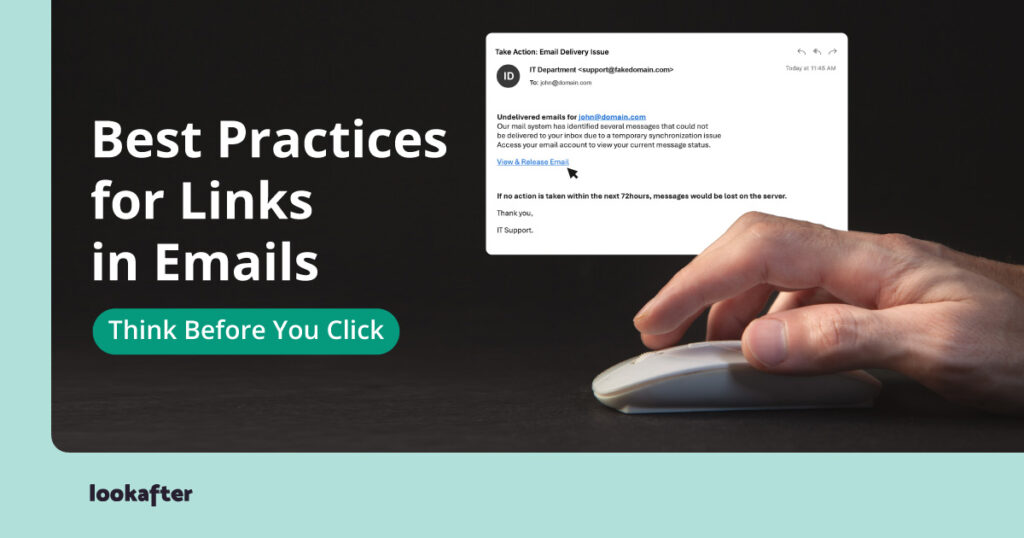
Links are everywhere in business emails.
You may receive a link to a document from a colleague, a payment page from a supplier, a meeting invitation, or a website shared by a customer. Most of the time, clicking a link is perfectly normal.
But links are also one of the most common ways scammers try to trick people.
A link can lead to a fake login page, a malicious website, or a fraudulent payment request. Sometimes, the email itself may look completely legitimate.
The good news is that you don’t need to be a technical expert to handle email links safely. A few simple habits can help you avoid many common threats.
Table of Contents
- 1. Don’t Click Automatically
- 2. Check Where the Link Goes
- 3. Look Carefully at the Domain Name
- 4. Be Careful With Login Links
- 5. Don’t Trust Links Just Because You Know the Sender
- 6. Be Extra Careful With Unexpected Attachments and Downloads
- 7. Don’t Let Urgency Override Your Judgment
- 8. Be Careful With Shortened Links
- 9. Don’t Enter Sensitive Information Just Because a Link Asks
- 10. When in Doubt, Use a Different Route
- 11. Verify Unexpected Requests With the Sender
- 12. Report Suspicious Emails Instead of Just Deleting Them
- A Simple “STOP” Before You Click
- Final Thoughts
1. Don’t Click Automatically
The first rule is simple:
Don’t click a link just because it is in an email.
Before clicking, stop and ask yourself:
- Was I expecting this email?
- Do I know the sender?
- Does the request make sense?
- Is the link relevant to what the sender is asking me to do?
- Is there anything unusual about the message?
For example, if someone suddenly emails you a link asking you to “verify your account immediately”, take a moment to check whether you actually need to do this.
Urgency is often used to make people act before they think.
2. Check Where the Link Goes
The text displayed on a link may not tell you where it actually leads.
For example, an email might show:
Click here to access your account
But the actual destination could be a completely different website.
On a computer, you can usually move your mouse over the link without clicking it. Your email application may display the actual web address.
Look at the address carefully.
Be cautious if:
- The website address looks unfamiliar.
- The domain name contains unusual spelling.
- There are extra words or characters.
- The address does not match the company mentioned in the email.
- The link uses a completely unrelated domain.
- The address looks unusually long or confusing.
Don’t assume a link is safe simply because it contains a familiar company name.
3. Look Carefully at the Domain Name
Scammers sometimes create website addresses that look similar to legitimate ones.
For example, a fake address might use:
yourcompany-support.com
instead of the company’s actual domain:
yourcompany.com
The difference may be easy to miss, especially when you’re in a hurry.
When a link involves something important such as your email account, banking, payment, or company systems, pay particular attention to the main domain name.
If you’re unsure, don’t click the link.
Instead, open your browser and manually enter the company’s known website address or use a bookmark you already trust.
4. Be Careful With Login Links
One of the most dangerous types of email links is a link asking you to log in.
You might receive a message saying:
“Your password will expire today. Click here to keep your account active.”
The link may take you to a fake login page designed to steal your username and password.
This can happen even when the email looks professional.
If an email asks you to log in, consider going directly to the service’s website instead of using the email link.
For example, if you receive an unexpected email about your email account, don’t necessarily use the login button in the email. Open your normal webmail login page yourself.
5. Don’t Trust Links Just Because You Know the Sender
Knowing the sender doesn’t automatically make a link safe.
A colleague’s email account could have been compromised, allowing an attacker to send malicious messages from that account.
You might receive something like:
“Hi, here’s the document we discussed. Please review it.”
If the message is unexpected or the link seems unusual, verify it with the sender through another method.
A quick message such as:
“Did you send me this link?”
could prevent a much bigger problem.
6. Be Extra Careful With Unexpected Attachments and Downloads
Some email links don’t immediately ask for your password. Instead, they may take you to a page that asks you to download something.
Be cautious if an unexpected link asks you to download:
- An executable program
- A browser extension
- A “security update”
- An unknown document
- A compressed file
- Software you weren’t expecting
If you weren’t expecting a download, don’t proceed simply because the email tells you to.
When in doubt, check with your IT team or the person who supposedly sent the file.
7. Don’t Let Urgency Override Your Judgment
Scammers often use urgency to encourage quick clicks.
Common examples include:
- “Your account will be suspended today.”
- “Payment is overdue.”
- “Immediate action required.”
- “Your password expires in 24 hours.”
- “You’ve received a new invoice.”
- “Please review this confidential document.”
The goal is to make you think:
“I need to click this now.”
Instead, slow down.
Urgency doesn’t mean the email is legitimate.
Take a few seconds to verify the sender, inspect the link, and consider whether the request makes sense.
8. Be Careful With Shortened Links
Some services turn long website addresses into short links.
For example, instead of seeing a long address, you may see something like:
short.link/abc123
Short links can be useful, but they can also hide the actual destination.
If you don’t know where a shortened link will take you, be cautious about clicking it — especially when it comes from an unexpected email.
9. Don’t Enter Sensitive Information Just Because a Link Asks
A legitimate-looking website can still be fraudulent.
Be particularly careful if a link asks you to provide:
- Passwords
- Credit card details
- Banking information
- One-time passwords (OTP)
- Company login credentials
- Personal identification information
If an unexpected email asks for sensitive information, stop and verify the request.
Remember:
A professional-looking page doesn’t automatically mean it’s a legitimate page.
10. When in Doubt, Use a Different Route
You don’t have to use the link provided in an email.
If you’re unsure about a message, go directly to the organisation’s official website instead.
For example:
Instead of: Clicking a payment link in an unexpected email
Try: Opening your usual supplier or payment portal yourself.
Instead of: Clicking an account verification link
Try: Opening the service’s official website using a bookmark or a known address.
This removes one of the biggest risks: being taken to a fake website through a malicious link.
11. Verify Unexpected Requests With the Sender
Some email scams involve requests that appear to come from managers, customers, suppliers, or colleagues.
For example:
“Please click this link and update our company payment information.”
If the request is unusual, don’t rely only on the email.
Contact the person using a trusted communication method, such as a known phone number or an existing chat conversation.
Don’t use the contact details provided in a suspicious email to verify the email itself.
12. Report Suspicious Emails Instead of Just Deleting Them
If you receive a suspicious email at work, don’t simply assume that deleting it solves the problem.
Your organisation may have a process for reporting phishing or suspicious messages.
Reporting them can help your IT or security team identify similar attacks and protect other employees.
If you accidentally clicked a suspicious link, tell your IT or security team as soon as possible.
Don’t be embarrassed or try to hide it.
Quick reporting can make it easier to protect your account and the company.
A Simple “STOP” Before You Click
When you’re unsure about an email link, remember STOP:
S — Sender
Do I know the sender, and was I expecting this email?
T — Target
Where does the link actually lead?
O — Offer
Does the request make sense, or is it unusually urgent?
P — Protect
Am I being asked for a password, payment, download, or other sensitive information?
If something doesn’t feel right, don’t click.
Final Thoughts
Email links are a normal part of everyday business communication. You don’t need to avoid every link or become a cybersecurity expert.
The important thing is to develop a habit of pausing before you click.
Check who sent the email. Think about whether you were expecting it. Inspect where the link leads. Be cautious with login pages, downloads, payments, and requests for sensitive information.
And if something seems unusual, verify it before taking action.
A few seconds of caution can prevent hours of trouble later.